- Automatic shape packing into containers
Fit multiple vector objects inside any closed shape. - Collision-aware layout
Objects never overlap – spacing resolves naturally. - One-click layout generation
Replace manual nudging, aligning, and distributing. - Works with real Illustrator paths
No rasterization, no conversion.
Real-time 2D physics simulation for Adobe Illustrator using Planck.js (Box2D). Transform vector artwork into dynamic physics bodies for animations, pack irregular shapes into irregular shape and enjoy new ways making generative design.
Quick Start
- Create few vector paths in Illustrator
- Click Import in the panel
- Click Play to start simulation
- Drag items to adjust in real time.
- Click Export to apply transforms back to Illustrator
Interface
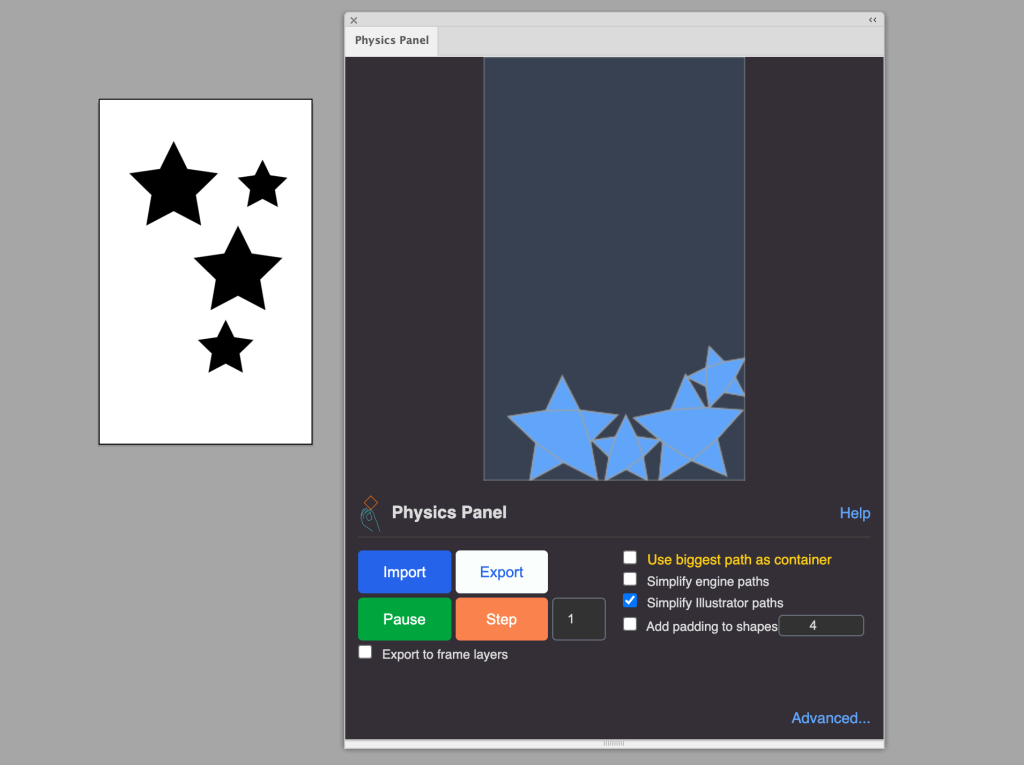
Physics Canvas
- Blue shapes: Dynamic physics bodies
- Orange border: Container boundary (when enabled)
- Apple icon: Drag to control gravity direction/magnitude (only available when Use biggest path as container is set)
Basic Controls
Left Column:
- Import: Capture selected Illustrator paths as physics bodies
- Export: Apply current physics transforms back to Illustrator
- Play/Pause: Start/stop continuous simulation
- Step: Advance simulation by N iterations AND export to Illustrator
- Step iterations input: Number of steps per click (default: 1)
- ✅ Export to frame layers: needed for animation – creates frame layer for each step/export
Right Column:
- ✅ Use biggest path as container: Largest path becomes static boundary (orange border), good for packing items into one
- ✅ Simplify engine paths: Reduce vertices in physics engine.
- ✅ Simplify Illustrator paths: Apply Illustrator path simplification on import.
- ✅ Add padding to shapes: Expand paths by N pixels
Advanced Settings (Click “Advanced…”)
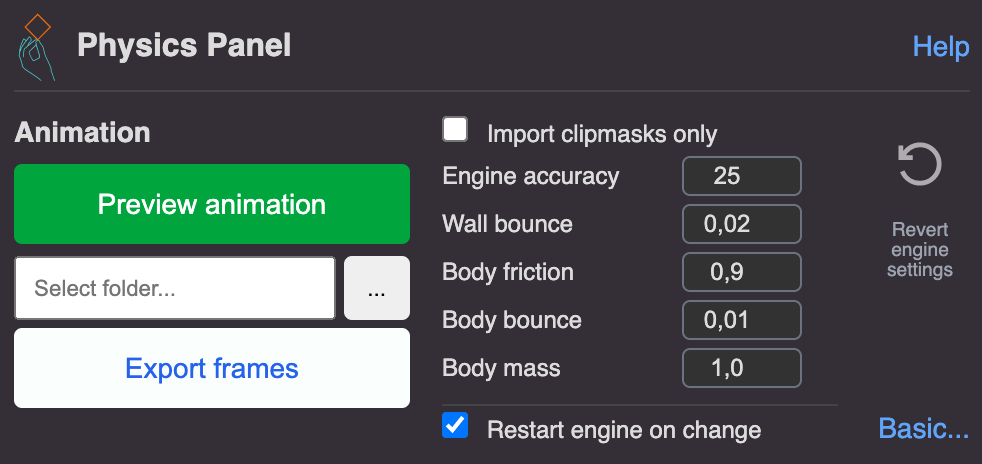
Left Column – Animation:
- Preview animation: Loop playback of frame layers. Frame layers have to be generated with Export to frame layers checkbox first.
- Folder path + browse: Select PNG export destination
- Export frames: Export all
@P_XXXXlayers as PNG sequence
Right Column – Engine:
- ✅ Import clipmasks only: Fast import for complex artwork (only clipmask vectors are used as engine shapes)
- Engine accuracy (1-120): Timestep rate – higher = more accurate/slower (default: 25 = 1/25s)
- Wall bounce (0-1): Container/boundary restitution (default: 0.02)
- Body friction (0-1): Surface friction between objects (0 = slippery, 1 = sticky, default: 0.9)
- Body bounce (0-1): Restitution – how much objects bounce (0.01 = minimal, 0.5 = bouncy)
- Body mass (0.1-10): Density – heavier = harder to move (default: 1.0)
- Restart engine on change: Auto-rebuild physics world when settings change
- Revert engine settings: Reset advanced parameters to defaults
Workflows
Animation
Layer Method (for previewing/editing):
- Enable ✅ Export to frame layers
- Click Step repeatedly.
- Each step creates layer:
@P_0001,@P_0002, etc. - Click Preview animation to loop through frames (under Advanced..)
- Export AI file with frame layers for external tools
PNG Method (for video editing):
- Generate frame layers (see above, 1..3)
- Click “Export frames” → generates
frame_0001.png,frame_0002.png, etc. - Import sequence to After Effects/Premiere/Media Encoder
Shape Packing
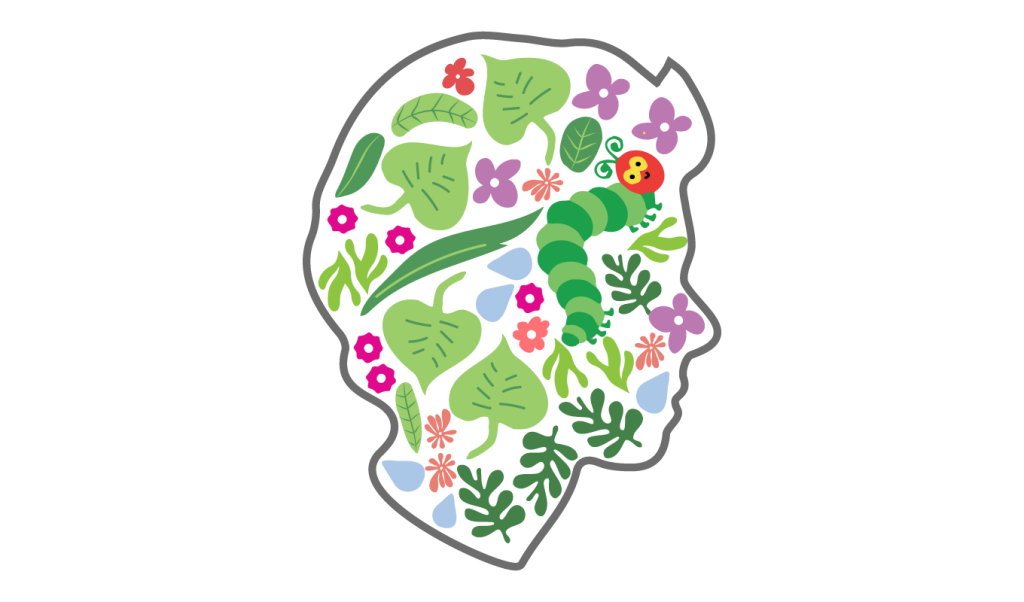
- Draw container shape (must be largest by area)
- Add objects to pack inside
- Enable “✅ Use biggest path as container“
- Optional: Add padding (5-10px) for spacing
- Drag apple icon to center/bottom
- Click Play – objects fall and nest
- Export when satisfied
Use Cases
1. Short Animations
Falling letters: Type word → Outline → Ungroup → Import → Set bounce 0.05 → Play → Export frames → After Effects
Logo reveal: Break logo into parts → Scatter → Add container → Enable container mode → Simulate → Export (or reverse frames for assembly effect)
Why physics: Natural motion, realistic collisions, unique variations, faster than keyframing
2. Shape Packing
Product layouts: Draw bag/box outline (largest) → Add product icons → Container mode → Drag gravity around → Shapes pack automatically without overlap
Poster composition: Organic boundary → Content rectangles → Low gravity → Use apple icon to push/pull → Export layout → Place content
Techniques:
- Gravity sweep: Drag apple in circles to “shake” objects tighter
- Multi-pass: Pack set 1 → Export → Add set 2 → Re-import all → Continue
- Padding: 5-15px prevents visual overlap
3. Innovative Design
Generative patterns: Create shape library → Duplicate randomly → Import → Experiment with bounce/gravity → Export interesting moments → Layer results
Logo variations: Break into parts → Gentle simulation (low gravity, 5-10 steps) → Export → Repeat with tweaked settings → Compare options
Interactive sketching: Rough sketch → Import → Play with physics → Export promising arrangements → Refine in Illustrator → Iterate
Technical
Performance:
- Keep paths simple (fewer vertices)
- <100 objects for real-time performance
- Consider creating clipmasks for artwork in Illustratporand using
✅ Import clipmasks only setting for complex artwork. - Lower accuracy value if slow (15-20 instead of 25)
Tips
Physics tuning:
- Realistic: bounce 0.01-0.1, friction 0.9
- Bouncy/cartoon: bounce 0.5-0.8
- Quick settle: low bounce, high accuracy
Shape packing:
- Container 30-50% larger than total object area
- Padding 5-15px prevents overlap
- Drag apple in circles to shake objects tighter
Animation:
- 10 FPS = 100 frames for 10 seconds
- Plan: Step count × iterations = target frames
- Delete frame layers after PNG export (large files)
Troubleshooting
Objects not importing: Select paths, outline text (Type > Create Outlines), expand complex objects
For very complex objects its recommended to add clip masks and use ✅ Import clipmasks only setting.
Unstable/jittery: Increase accuracy to 30+, lower bounce <0.3, simplify paths
Objects fall through walls: Too fast – increase accuracy.
Export doesn’t work: Unlock layers, ungroup objects, re-import to reset.
Preview animation fails: Need @P_XXXX layers with zero-padded numbers
Slow performance: Simplify paths, reduce object count <50, lower accuracy to 15-20
Container not working: Must be largest path by area, check orange border appears
Settings Reference
| Setting | Type | Range | Default | Effect |
|---|---|---|---|---|
| Body bounce | Number | 0-1 | 0.01 | Object restitution (0=no bounce, 1=perfect bounce) |
| Body mass | Number | 0.1-10 | 1.0 | Density (higher=heavier, affects momentum) |
| Body friction | Number | 0-1 | 0.9 | Surface friction (0=slippery, 1=sticky) |
| Wall bounce | Number | 0-1 | 0.02 | Container/boundary restitution |
| Engine accuracy | Number | 1-120 | 25 | Timestep rate (higher=more accurate/slower) |
| Step iterations | Number | 1+ | 1 | Simulation steps per click |
System Requirements
- Illustrator CC 2018+
- macOS 10.12+ or Windows 10+
- 8GB+ RAM recommended for complex simulations
Version 1.0 | Physics Engine: Planck.js | Polygon Decomposition: poly-decomp.js